01
Connect
Plug one end of the HDMI cable into your television and the other into the Block Stream device, then connect the power adapter. Switch your TV to the matching HDMI input.
No tools, no mounting, no technician.
Setup Guide
Block Stream is designed to be set up by anyone. Four steps, one remote, and no technical background required.
Plug one end of the HDMI cable into your television and the other into the Block Stream device, then connect the power adapter. Switch your TV to the matching HDMI input.
No tools, no mounting, no technician.
Block Stream walks you through joining your home Wi-Fi network. Once connected, it checks for and installs any available software updates automatically.
Works with standard home Wi-Fi networks.

Sign in to the entertainment services you already pay for and install compatible apps. Arrange your home screen around what your household actually watches.
Your accounts, your logins, your choices.

Stream, watch, listen and play on the biggest screen in the house. Use the included remote, and on Block Stream Gaming, the wireless controller as well.
That's it — you're set up.
Before You Start
Any compatible TV with an available HDMI input. No smart features required — Block Stream provides them.
A Wi-Fi network or supported wired connection. Streaming and app downloads need an internet connection.
We supply your own BlockTV login — a service we provide. One login per device you order, each supporting one screen at a time.
That's realistically how long the whole setup takes, including Wi-Fi and signing in.
Block Stream Gaming
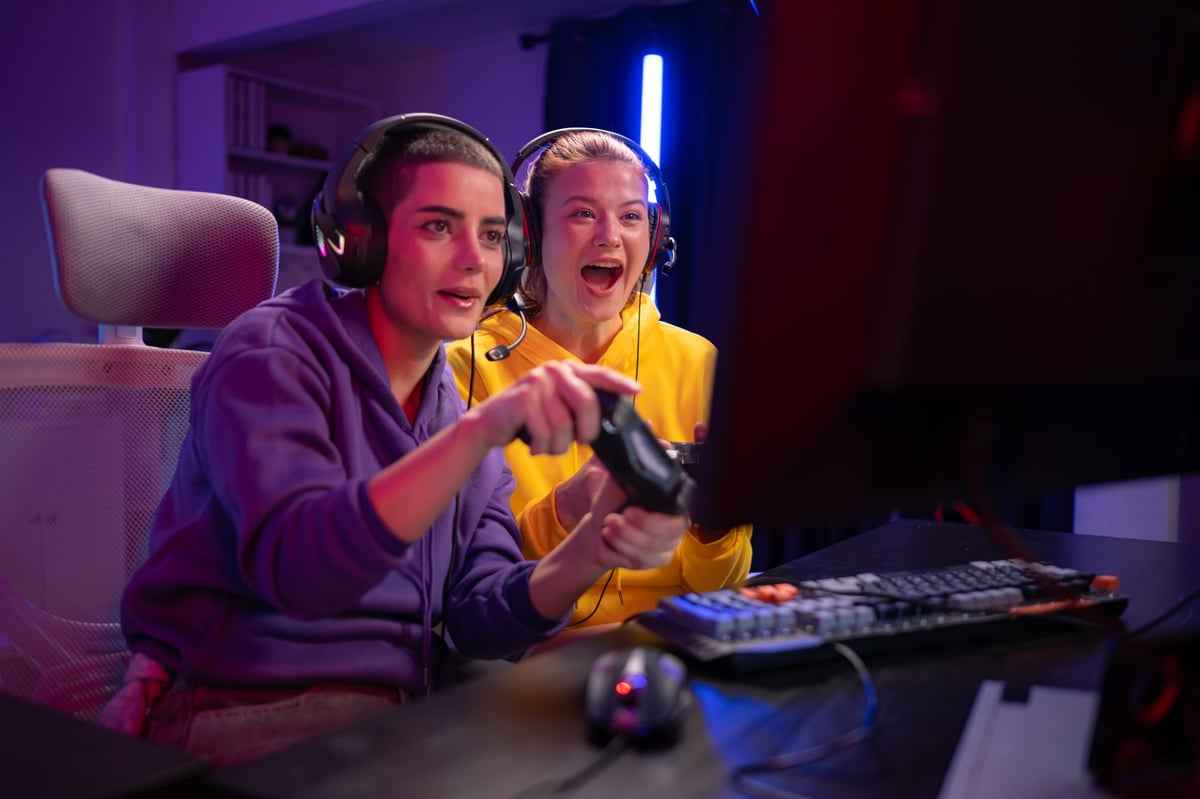
Block Stream Gaming sets up exactly the same way. The only difference is pairing the wireless controller, which takes about a minute.
Games are not included with the device. Compatible titles are installed from supported app stores and availability varies by region and provider.
If Something Doesn’t Work
Most setup issues come down to one of these four things.
Confirm your television is on the correct HDMI input — most remotes have a dedicated Source or Input button that cycles through them.
Check you selected the right network and re-entered the password carefully. A 5GHz network name can look nearly identical to its 2.4GHz twin.
Run a software update from Settings, then check your internet connection. Some apps also require a region or account setting to be configured.
Hold the controller's power button until its light flashes, then select it in the Bluetooth list. Un-pair it first if it's still listed from a previous attempt.
Setup assistance is part of the product. If you’re stuck on any step, our support team will walk you through it.
Pick your model and follow the same four steps.